Friday, 25 January 2013

CLUSTER COMPUTING INTRODUCTION

cluster computing
              In computers, clustering is the use of multiple computers, typically PCs or UNIX workstations, multiple storage devices, and redundant interconnections, to form what appears to users as a single highly available system. Cluster computing can be used for load balancing as well as for high availability. Advocates of clustering suggest that the approach can help an enterprise achieve 99.999 availability in some cases. One of the main ideas of cluster computing is that, to the outside world, the cluster appears to be a single system.
cluster computing

             A common use of cluster computing is to load balance traffic on high-traffic Web sites. A Web page request is sent to a "manager" server, which then determines which of several identical or very similar Web servers to forward the request to for handling. Having a Web farm (as such a configuration is sometimes called) allows traffic to be handled more quickly.
Clustering has been available since the 1980s when it was used in DEC's VMS systems. IBM's Sysplex is a cluster approach for a mainframe system. Microsoft, Sun Microsystems, and other leading hardware and software companies offer clustering packages that are said to offer scalability as well as availability. As traffic or availability assurance increases, all or some parts of the cluster can be increased in size or number.
             Cluster computing can also be used as a relatively low-cost form of parallel processing for scientific and other applications that lend themselves to parallel operations. An early and well-known example was the Beowulf project in which a number of off-the-shelf PCs were used to form a cluster for scientific applications.


UNLOCK VODAFONE K3770 MODEM

ZTE K3770 is  3G Modem Available in market with 7.2 MBPS supporting Speed.
Although it is ZTE modem it comes unlocked as it comes from the market you just need to setup the access point name of the network you want to use in the modem. Here in this article i will mention how to set up this in few simple steps.


Unlocking Tutorial :

1. Firstly insert any other SIM Except Vodafone in your Modem.

2. Then let it load drivers in your computer and install the Vodafone Broadband Dashboard to Your Desktop/Laptop.

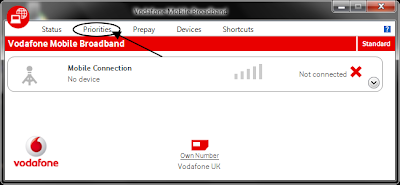
3. It will Show an Error Message About the Sim Just Ignore That. Now Run the Vodafone Broadband Dashboard.

vodafone k3770 modem unlock

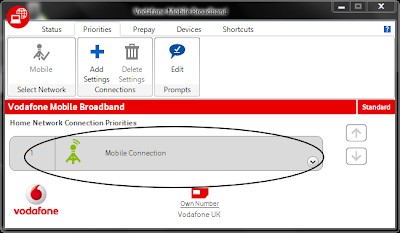
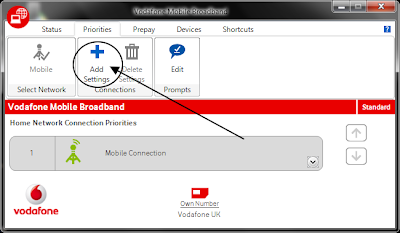
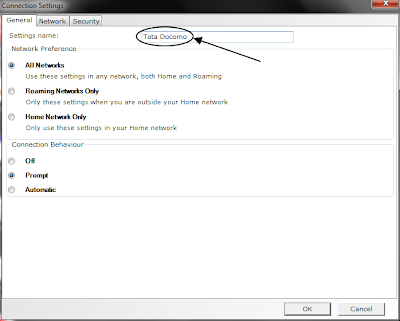
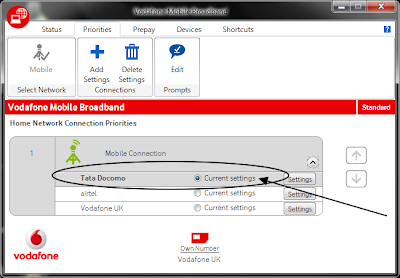
4. Go to Priorities and set a new connection name and then goto Networks Tab.


vodafone k3770 modem unlock
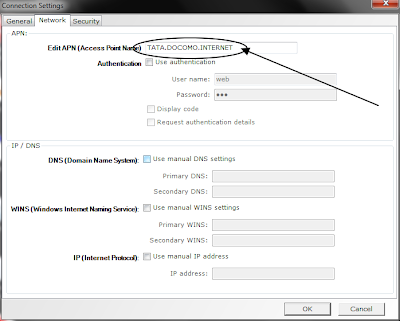
5. Insert Access Point Name Of the Network or Sim Operator you want to use.

vodafone k3770 modem unlock
6. Keep other spaces as it is or else empty. Press Ok and Use the Setting Name as current Setting and Plug out the Modem.

vodafone modem unlock
7. Now again Run the Dashboard and you will see 3G or 2G network of whatever SIM Operator you are using.

8. Here is the Most important Step don't click on connect just Goto Network and Sharing Center and then connect the network operator there.

Saturday, 19 January 2013

IDEA FREE GPRS TRICK 2013

IDEA FREE GPRS TRICK 2013
I am here with the Free GPRS settings for the IDEA 3g to use the Free Internet In the month of january 2013.

Settings for Idea Free GPRS Trick September 2012


Apn : Imis (or) Mmsc
Proxy : 10.4.42.15
Port : 8080
Homepage : any one from below.https://concealme.com https://flyproxy.com
https:// hot-proxy.info
https:// Fire-proxy.com
https:// Proxyforall.com
https:// Abcproxy.com
I hope this free gprs trick for idea is working for you

Saturday, 5 January 2013

MAKE WINDOWS 8 EASIEAR AND QUICKER TO USE

Windows 8 can be frustrating because nothing seems to be where it used to be. Here are three tricks that help you find things. They will make ordinary tasks much easier to carry out.

1. Quick and easy way to access all the settings in Windows 8

One of the annoyances of Windows 8 is trying to find all the various system settings. Here is a way to make them readily available in one big list.
  1. Go to the Desktop
  2. Right-click an empty spot on the Desktop
  3. Choose “New-Folder”
  4. Give the folder this name:
    All Settings .{ED7BA470-8E54-465E-825C-99712043E01C} 
  5. Open the folder to see a complete list of settings
(This works in Windows 7 also where it is sometimes called “God Mode”.)

2. How to shut Down Windows 8 quickly

Shutting down Windows 8 the usual way involves multiple steps. You have to open the Charms bar, click "Settings", then "Power", and finally "Shut down". Here is how to create a desktop shortcut that will reduce these four steps to just one.
  1. Go to the Desktop
  2. Right-click an empty spot on the Desktop
  3. Choose “New-Shortcut”
  4. Go to the line labelled “Type the location of the item…”
  5. Enter:  shutdown.exe -s -t 0 (The last character is "zero".)
  6. Click “Next”
  7. Type a name like Shutdown
  8. Click “Finish”
Once the shortcut is created, you can pin it to the Taskbar:
  1. Right-click the shortcut
  2. Click “Pin to Taskbar”
You can also place the shortcut on the Metro (Modern) interface:
  1. Right-click the shortcut
  2. Click “Pin to Start”
Start in this case refers to the Start Screen and places a copy of the shortcut along with the tiles on the Metro interface.

3. How to put commonly used folders and functions on the Desktop

The default desktop in Windows 8 is pretty bare. If you would like ready access on the desktop to some commonly used features, here is how:
  1. Go to the Desktop
  2. Right-click an empty spot on the Desktop
  3. Select “Personalize”
  4. On the upper left of the dialog box, click “Change desktop icons”(shown in graphic on right)
  5. In the dialog that opens (shown below) put a check by the icons you want on the desktop. Control Panel is one I like to have
  6. Click “OK” and close the Personalization window
WINDOWS 8
And there you have it - three ways to make using Windows 8 a little easier

Friday, 4 January 2013

DISABLE WINDOWS 8 AUTOMATIC MAINTENANCE

Microsoft reiterated that Windows 8 has been built upon the solid foundations of its predecessor. Well, there is no denying this fact, because apart from looking stunning, Windows 8 includes several robust features under the hood that make it fast, stable and snappy, just like the previous version. One of the refreshing additions to this feature-set is automatic system maintenance (also called Regular Maintenance), which checks for software updates, system diagnostics and security scanning tasks, on regular basis. This option ensures that maintenance tasks are performed at a specified time, provided you’re not around and the system is idle. In what follows, we will guide you through the process of changing time settings to run the daily maintenance task, whether to allow the schedule maintenance to wake your machine, as well as disable this feature if you don’t need it.

Change Scheduled Maintenance Time

To change time settings for automatic system maintenance, click the Action Center icon in the System Tray followed by ‘Open Action Center’. Alternatively, you can access the Action Center from the Control Panel.
disable windows 8 automatic maintenance
 
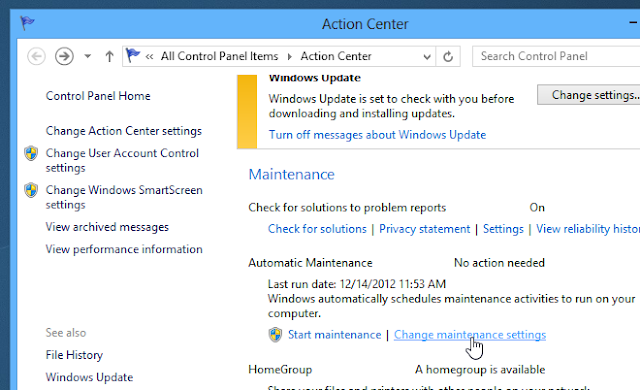
In the Action Center window, click the arrow beside Maintenance to expand its settings, and then click ‘Change maintenance settings’ under the Automatic Maintenance section, as demonstrated in the screenshot below.
disable windows 8 automatic maintenance
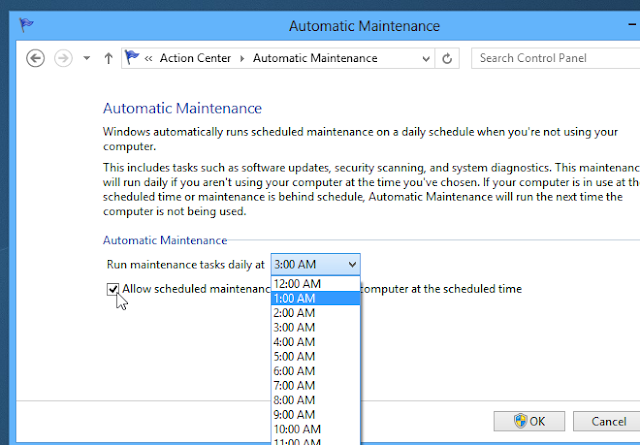
Here, you can choose the maintenance time according to your liking. Windows 8 sets this time to 3:00 AM by default, but you can change it to any other time. Furthermore, you can enable/disable the optional ‘Allow scheduled maintenance to wake up my computer at the scheduled time’. When done, click OK to apply the changes. If prompted by the UAC, simply click the Yes button.
disable windows 8 automatic maintenance

Disable Automatic Maintenance

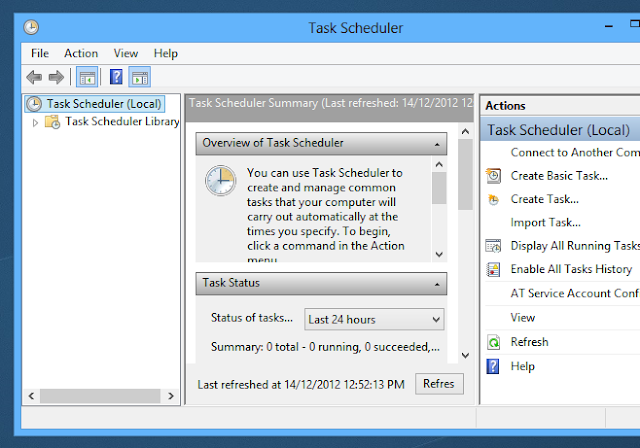
Apart from changing time parameters, you can also disable the Automatic Maintenance option altogether. This can done from within the Windows Task Scheduler utility. To do so, press Win+W to call the Search Charm and type “task scheduler” or “schedule tasks”. Selecting Schedule tasks from the left will launch the Task Scheduler window.
disable windows 8 automatic maintenance
Task Scheduler is Window’s native utility that allows various system or user applications to be launched or triggered automatically at a user defined time. It houses three navigation panes. The left pane lets you select the task, the center pane contains information regarding the selected task, while the right pane contains further pertaining actions.
disable windows 8 automatic maintenance
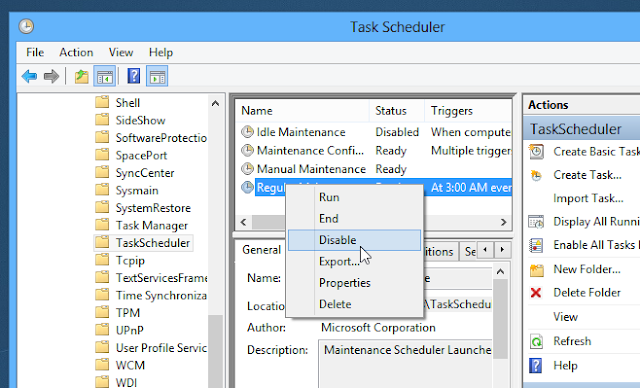
From  the left pane, navigate to:
Task Scheduler Library > Microsoft > Windows > TaskScheduler
Right click ‘Regular Maintenance’ from the center pane and select Disable from its context menu.
disable windows 8 automatic maintenance
That’s it! You have successfully disabled Regular Maintenance.


Thursday, 3 January 2013

AIRTEL FREE GPRS TRICK FOR JANUARY 2013


airtel free gprs 2013
Free GPRS Trick Jan. 2013

Hello friend finally find new free airtel gprs internet trick for PC you can use this trick for PC internet and easily get free internet usage on mobile also with same APN and port.This trick is working 100% in all over india.
# Instruction
Step 1: Download proxomitron from here
Help for USE: Now extract it [1] open the file named default.cfg through note pad [2]go to edit option ,then replace option [3]a window appears in Find what write "yourhostputithere" without quotoes and in. replace with.[4]write your working free host. click replace all.done here ]

Step 2 : install and put the file named default.cfg in the proxomitron folder in programs file where u installed NOw  run The program

Step 3 : After running select file->load config file- > and select  the file named default.cfg in the proxomitron folder in programs file where u installed.

Step 4 : Now open Opera (only opera browser in PC) and Turn Opera Turbo on

Step 5 :Now Change Opera Proxy server as: (Change same proxy in IDM as well)
proxy :127.0.0.1
port :8080

NOw you can enjoy free gprs trick on PC... Special Thanks to our one of forum where this topic is posted. FREE GPRS Airtel 2013
Related Posts Plugin for WordPress, Blogger...