Showing posts with label windows 8. Show all posts

Sunday, 3 February 2013

CLEAR CACHE IN WINDOWS 8

One of the things that help in speeding up your computer is clearing the cache. Although it isn’t everything it takes to get some speed, it still does wonders in some cases. Especially in Windows 8, where you have two different environments: the desktop and the Modern UI. You have to know how to clear the cache for both of them, and in what follows, we’re going to show you various tips for doing just that.
windows 8

Desktop Apps Cache

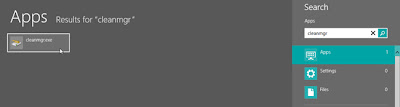
Type “cleanmgr” on the Start screen, press Enter and select cleanmgr.exe from the search results. Disk Cleanup will open and scan for files.
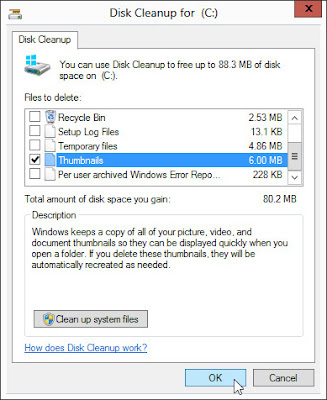
Once it’s done scanning, check ‘Thumbnails’ and click OK.
Sometimes, when you’re having browsing problems (even though your internet connection is working), you probably need to flush your DNS cache.
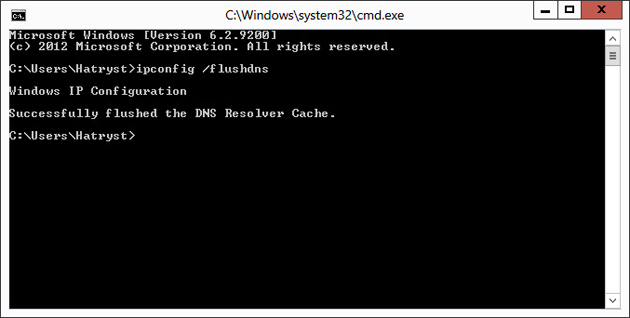
To do so, open command prompt, and type the following command: (don’t forget the space after ipconfig)
ipconfig /flushdns
Modern UI Apps Cache

There are several things you can do here. Let’s begin with Internet Explorer, the Modern UI version of the browser, that is.

Internet Explorer Cache

Yes, the desktop version of IE has its own browsing history, and so does the Modern version. For the latter, you need to open Internet Explorer from the Start screen.
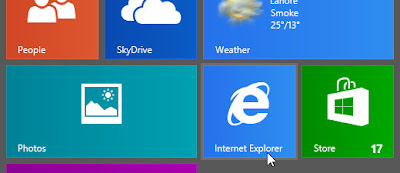
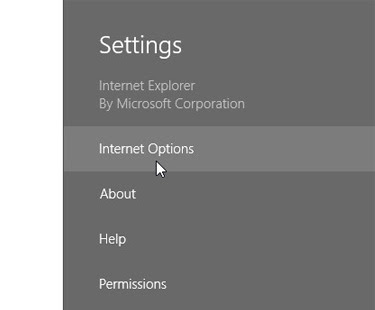
Bring up the Charms bar (one of the several ways to do that is to move your mouse into the bottom-right corner of the screen) and click Settings and select ‘Internet Options’ from the menu that follows.
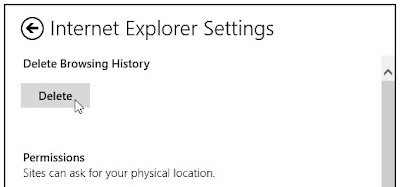
Click the Delete button under ‘Delete Browsing History’ to do just that.
Windows Store Cache

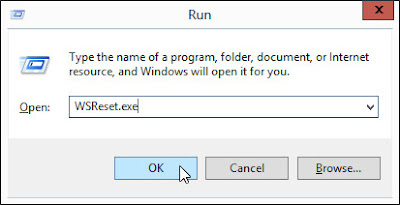
Let’s move on to another Modern UI app. How about resetting the Store cache? To do so, press Win key + R to bring up the Run Window. Type “WSReset.exe” and press Enter.
windows 8 pc settings
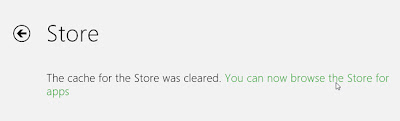
The Store app will open, and you’ll see the following message.
Search History

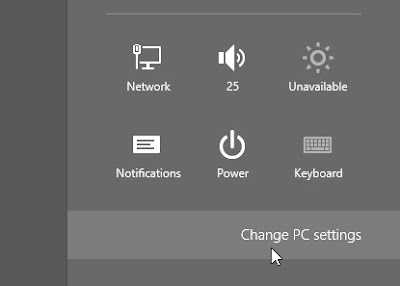
If you use the Search function of the Charms bar quite often, you might consider deleting the search history. To do so, launch the Charms bar, and select Settings > PC Settings.
windows 8 pc settings
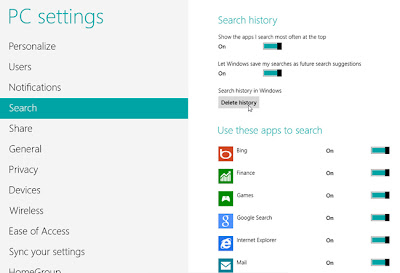
Select Search from the left pane, and click the ‘Delete history’ button below ‘Search history’.
Live Tile Cache

One last thing that you might consider doing is clearing up the live tile cache. You can do this whenever you notice the live tiles failing to be ‘live’.
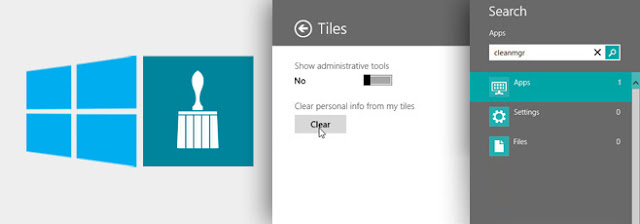
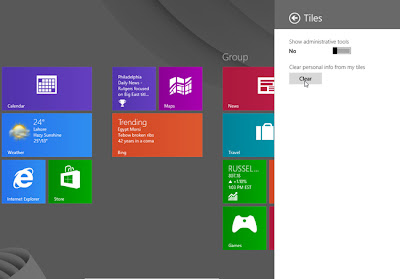
On the Start screen, hit Win key + C or scroll to the bottom-right corner to open the Charms Bar and select Settings > Tiles.
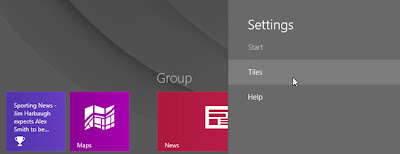
Under ‘Clear personal info from my tiles’, click the ‘Clear’ button.
windows 8
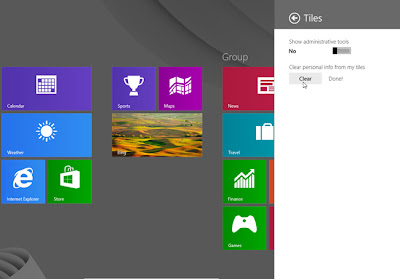
You’ll notice that all your live tiles will be reset to default.
windows 8
So these were some of the ways you can reset the cache in Windows 8. Know any other methods? Tell us in the comments!

INSTALL .NET FRAMEWORK 3.5 ON WINDOWS 8

windows 8 desktop
        
           The arrival of Windows 8 has really bought in a lot of new features and at the same time, forgot to implement the old ones which presented difficulty to many users of the cyber world. One among the many major problem users would face is the omission of .Net framework 3.5 and older versions from the OS. That doesn't mean, of course, you can simply install the programs that needs .Net even if it is not present. The thing is -- If you want .Net Framework 3.0, you gotta install it seperately when the need comes and yes, it must be done online. So, if you already tried to install a program and are getting the error relating .Net Framework, then this is your problem.

Even if you have the installation package somewhere, it most probably wouldn't work and that means you are forced to do it online. We are not talking about a small add-on here as the package costs more than 100 MBs, a problematic problem to many people who doesn't have an internet connection. However, there is still a way to do this without internet connection with the help of the Windows 8 Installation media. In this post, I'll show you how with the help of Windows' Command Prompt and the installation media.
windows 8 features
Inside the Windows 8 Installation media, all the necessary installers are present which are not installed during Windows 8 installation and normally, not visible to common folk. That means it includes the .Net Framework package too. However, you can't directly approach and install like you normally do. With the help of Windows' Deployment Image Servicing and Management Tool (or DISM tool), we can install this package onto Windows 8 and thus, continue using the programs that requires the older .Net versions.
---------------------------------------
1. Run command prompt as Administrator. You can do this by right-clicking on the lower-left corner of the screen and choosing Command Prompt (Admin).
2. Insert the Windows 8 installation media to the computer or if you are having Windows 8 image, mount it using Daemon Tools or extract it to a folder on any drive.
3. Now, copy-paste the code given below onto the command prompt:

dism /online /enable-feature /featurename:NetFx3 /all /source:<w8_setup_drive>\sources\sxs
4. Change the highlighted part of the code to the path of Windows 8 installation directory or drive. i.e, DRIVELETTER:\DIRECTORY\sources\sxs Omit the directory part if you inserted or mounted the installation media and just give the driveletter: at the highlighted region. (If you still don't get it, see the attached image for a sample run of the code).


5. The DISM Tool will start and it will take a few while to install. Don't remove the installation media before completion. Once that's done, reboot the system. That's it! Now, you can install programs based on .Net Framework 3.5 and older versions on your Windows 8 device.

Tuesday, 29 January 2013

SOLUTION APPLICATIONS NOT WORKING IN WINDOWS 8

windows 8 application
               Hello friends As we all are know that Windows 8 is new operating operating System.And all application of Windows 7 is not Working on Windows 8.But Don't worry If Any Application of Windows 7 is not Supported in Windows 8 then try the following things and you got Success in 80% Applications.

1: Create a virtual machine

I will go ahead and get the last resort step out of the way up front. Windows 8 includes its own copy of Hyper-V. If you can’t get an application to function in Windows 8, you can enable Hyper-V and create a virtual machine running a legacy version of Windows as a way of running the application.

2: Turn off User Account Control

I haven’t experienced any User Account Control (UAC)-related compatibility problems in Windows 8 yet, but I have run into problems in Windows 7. When I first adopted Windows 7, there was a particular dictation application that would not work until I disabled UAC. I have read posts on the Internet from people who have had similar experiences in Windows 8, where disabling UAC resolved a compatibility issue.
window 8 applications
windows 8 applications

3: Install .NET Framework 3.5

When you install Windows 8, version 4.5 of the .NET Framework is installed by default. However, older apps often require an earlier version of the .NET Framework. If you receive a .NET Framework-related error, you can go into the Control Panel, click on Programs, and choose the option to turn a Windows feature on or off. Windows will display a list of the various components you can enable or disable. One of the items on the list is .NET Framework 3.5, which also includes .NET 3.0 and 2.0. Installing this component will likely correct the issue that you are experiencing.

4: Check for application patches

One of the first things you should do upon discovering an application compatibility problem is contact the application vendor and find out if it has a Windows 8 patch available. Sometimes, a patch is all you need.

5: Upgrade to the next version

When I made the switch to Windows 8, I discovered that a video-editing application I use on a regular basis would not work with Windows 8. Although I might have been able to resolve the problem using less drastic measures, I ultimately decided to simply upgrade to the newest version of the application. Not only was the latest version certified to work with Windows 8, but it also had some other new features I wanted to try out.

6: Upgrade your hardware drivers

One of the biggest problems I had when I upgraded to Windows 8 was that a program I use every day wouldn’t run. The error message I received indicated that Windows 8 did not support OpenGL. However, OpenGL support is provided by the video driver, not by the operating system. It turned out that my problem was caused by an outdated version of AMD Catalyst. When I upgraded to the latest version, the problem went away and I was able to run the application.

7: Let Windows troubleshoot the problem

Windows 8 includes a utility called the Program Compatibility Troubleshooter that can sometimes automatically resolve compatibility problems. You can run the Program Compatibility Troubleshooter by right-clicking on the problematic application and choosing the Troubleshoot Compatibility command from the shortcut menu.

8: Trick the application into thinking it is running on an earlier version of Windows

Some applications are hard-coded to look for a specific version of Windows. In these types of situations, you can configure Windows 8 to lie to the application about what version of Windows you’re running. Start by running the Program Compatibility Troubleshooter (as described above). When you get to the What Problems Do You Notice screen, choose the option for programs that worked in an earlier version of Windows. After clicking Next, you will have the option of telling the utility which version of Windows the application worked in.

9: Provide the application with extra permissions

Some legacy applications (especially those written for Windows XP) fail to run due to inadequate permissions. Once again, the Program Compatibility Troubleshooter can help. When you get to the What Problems Do You Notice screen, choose the option related to the program requiring additional permissions. As an alternative, you could try right-clicking on the application and choosing the Run As Administrator option (assuming that you have administrative permissions).

10: Check the Compatibility Center

One last thing you can do is check the Compatibility Center for information about the application. The Compatibility Center is a Web site Microsoft uses to provide application compatibility information for Windows 7 and 8. In some instances, it provides a link to detailed instructions on what you must do to make an otherwise-incompatible application work with Windows 8.

Saturday, 26 January 2013

WINDOWS 8 FEATURES


windows 8 start button
                   Hello friends Here in this article i will tell you why windows 8 is better then windows 7?And How it provides best graphical user interface?
Where’s the Start button?
With most versions of windows, the Start button, located in the bottom left of the screen, was how you launched all your programs and found the majority of your files. Windows 8 doesn’t have a physical start button, rather the new tile interface is the start menu. Now you just swipe to the tile/program, and click it to open.
For small businesses looking to introduce mobile apps targeted at tablet or other large touchscreen users, or integrate tablet devices into the office, Windows 8 makes sense. For most other companies, the adoption and learning curve may take time to get used to. Most users we talked to agree, but note that once they get used to it, it’s great.
Windows 8 changes the desktop
The biggest change Windows 8 brings is the change to the desktop layout. Windows 8 defaults to a new touch-oriented layout that uses tiles similar to the ones found on their Windows Mobile operating systems. This change is an indication that Microsoft is going to be throwing considerable weight into the post-pc era, where devices like tablets and touchscreens work beside or replace conventional PCs.
This change from a file and folder oriented desktop to a tile oriented one could intimidate users who are unfamiliar with a mobile OS, or are less than comfortable with computers. It’s not like a user comfortable with XP or Windows 7 will be completely lost, as all of the existing programs that were icons on your desktop are now tiles with the icon clearly visible.
For those who are really uncomfortable with the new interface, pressing the Desktop tile will take you to the more traditional desktop Windows users might be more comfortable with. The best way to think of the desktop interface is Windows 7 with a mobile-ish overlay. Windows has noted that most Windows 7 programs will work just fine on Windows 8, however custom made programs may have issues and need to be upgraded to support the new layout. If you use custom made software, it is a good idea to contact the vendor/developer before upgrading.


windows 8 applications
Any new useful features?
There are a number of new features that many businesses will benefit from with adoption. Windows 8 focuses on collaboration and mobility more than almost any other OS. On the control side, administrators have a program called AppLocker which enables adminstrators to easily control employee’s access to files and programs, while pushing out updates to all computers at once.
Another interesting feature is that Windows 8 supports profile syncing through the cloud and USB sticks. Employees can sit down at any workstation, sync their profile and have access to their own system’s layout quickly and easily. Alternatively, they can use USB sticks to save their Windows session and have access to it when they plug in the USB. This makes the OS a lot more mobile.
While there are features of Windows 8 that businesses will utilize, it’s the programs that will define the success of this OS. Many businesses still use Microsoft XP and Microsoft has essentially stopped support for it. You’ll come across some issues when upgrading Microsoft programs. For example, if you use XP in the office and want to upgrade to Office 2013, you’ll have to upgrade to either Windows 7 or 8 (Microsoft would prefer it if you picked Windows 8).
This decision will force all vendors and software developers to either write two programs, one that supports XP, and the other that supports Windows 7 and 8. Most developers will likely just chose to drop support of XP. Essentially, this will force businesses to upgrade if they want support.
What about RT?
With the release of Windows 8, Microsoft also released a tablet oriented OS that’s based on Windows 8, Windows RT. The only difference is RT doesn’t run Windows desktop programs, rather it’s configured to run RT specific or cloud versions of programs. This could hamper collaboration between devices that run the two different systems. In other words, if you’re looking to upgrade, ensure the systems you choose are compatible. There will be a flood of Windows 8 tablets – tablets using Windows 8, not RT – and ultrabooks in the next few months.

Saturday, 5 January 2013

MAKE WINDOWS 8 EASIEAR AND QUICKER TO USE

Windows 8 can be frustrating because nothing seems to be where it used to be. Here are three tricks that help you find things. They will make ordinary tasks much easier to carry out.

1. Quick and easy way to access all the settings in Windows 8

One of the annoyances of Windows 8 is trying to find all the various system settings. Here is a way to make them readily available in one big list.
  1. Go to the Desktop
  2. Right-click an empty spot on the Desktop
  3. Choose “New-Folder”
  4. Give the folder this name:
    All Settings .{ED7BA470-8E54-465E-825C-99712043E01C} 
  5. Open the folder to see a complete list of settings
(This works in Windows 7 also where it is sometimes called “God Mode”.)

2. How to shut Down Windows 8 quickly

Shutting down Windows 8 the usual way involves multiple steps. You have to open the Charms bar, click "Settings", then "Power", and finally "Shut down". Here is how to create a desktop shortcut that will reduce these four steps to just one.
  1. Go to the Desktop
  2. Right-click an empty spot on the Desktop
  3. Choose “New-Shortcut”
  4. Go to the line labelled “Type the location of the item…”
  5. Enter:  shutdown.exe -s -t 0 (The last character is "zero".)
  6. Click “Next”
  7. Type a name like Shutdown
  8. Click “Finish”
Once the shortcut is created, you can pin it to the Taskbar:
  1. Right-click the shortcut
  2. Click “Pin to Taskbar”
You can also place the shortcut on the Metro (Modern) interface:
  1. Right-click the shortcut
  2. Click “Pin to Start”
Start in this case refers to the Start Screen and places a copy of the shortcut along with the tiles on the Metro interface.

3. How to put commonly used folders and functions on the Desktop

The default desktop in Windows 8 is pretty bare. If you would like ready access on the desktop to some commonly used features, here is how:
  1. Go to the Desktop
  2. Right-click an empty spot on the Desktop
  3. Select “Personalize”
  4. On the upper left of the dialog box, click “Change desktop icons”(shown in graphic on right)
  5. In the dialog that opens (shown below) put a check by the icons you want on the desktop. Control Panel is one I like to have
  6. Click “OK” and close the Personalization window
WINDOWS 8
And there you have it - three ways to make using Windows 8 a little easier

Friday, 4 January 2013

DISABLE WINDOWS 8 AUTOMATIC MAINTENANCE

Microsoft reiterated that Windows 8 has been built upon the solid foundations of its predecessor. Well, there is no denying this fact, because apart from looking stunning, Windows 8 includes several robust features under the hood that make it fast, stable and snappy, just like the previous version. One of the refreshing additions to this feature-set is automatic system maintenance (also called Regular Maintenance), which checks for software updates, system diagnostics and security scanning tasks, on regular basis. This option ensures that maintenance tasks are performed at a specified time, provided you’re not around and the system is idle. In what follows, we will guide you through the process of changing time settings to run the daily maintenance task, whether to allow the schedule maintenance to wake your machine, as well as disable this feature if you don’t need it.

Change Scheduled Maintenance Time

To change time settings for automatic system maintenance, click the Action Center icon in the System Tray followed by ‘Open Action Center’. Alternatively, you can access the Action Center from the Control Panel.
disable windows 8 automatic maintenance
 
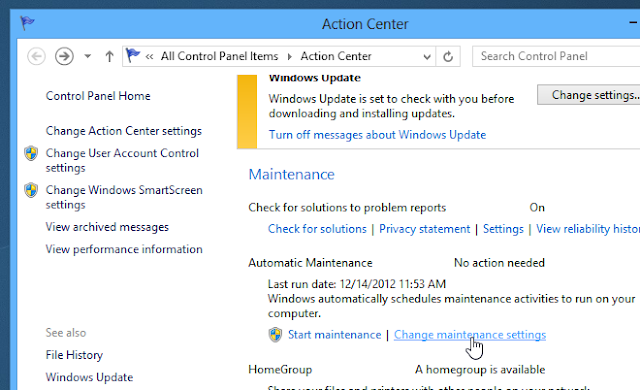
In the Action Center window, click the arrow beside Maintenance to expand its settings, and then click ‘Change maintenance settings’ under the Automatic Maintenance section, as demonstrated in the screenshot below.
disable windows 8 automatic maintenance
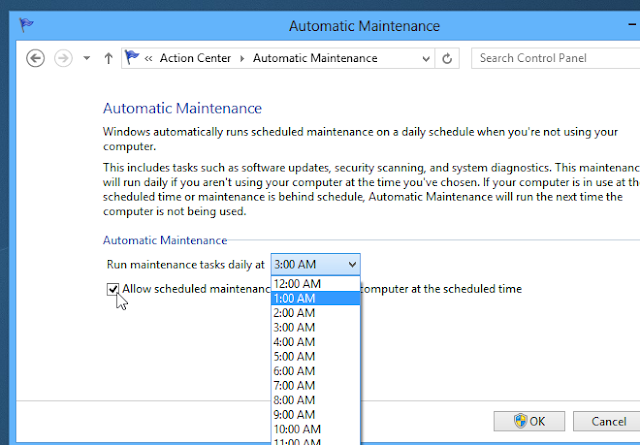
Here, you can choose the maintenance time according to your liking. Windows 8 sets this time to 3:00 AM by default, but you can change it to any other time. Furthermore, you can enable/disable the optional ‘Allow scheduled maintenance to wake up my computer at the scheduled time’. When done, click OK to apply the changes. If prompted by the UAC, simply click the Yes button.
disable windows 8 automatic maintenance

Disable Automatic Maintenance

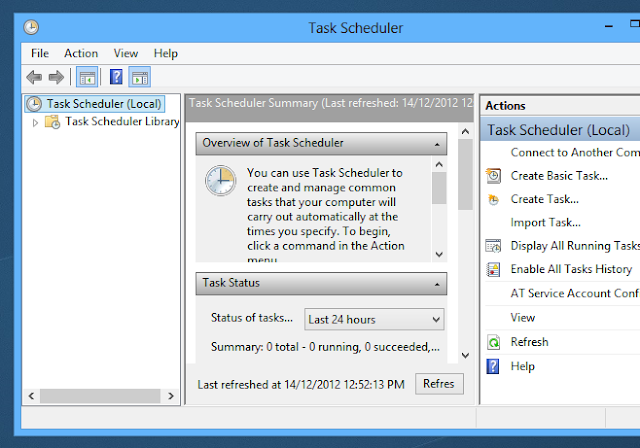
Apart from changing time parameters, you can also disable the Automatic Maintenance option altogether. This can done from within the Windows Task Scheduler utility. To do so, press Win+W to call the Search Charm and type “task scheduler” or “schedule tasks”. Selecting Schedule tasks from the left will launch the Task Scheduler window.
disable windows 8 automatic maintenance
Task Scheduler is Window’s native utility that allows various system or user applications to be launched or triggered automatically at a user defined time. It houses three navigation panes. The left pane lets you select the task, the center pane contains information regarding the selected task, while the right pane contains further pertaining actions.
disable windows 8 automatic maintenance
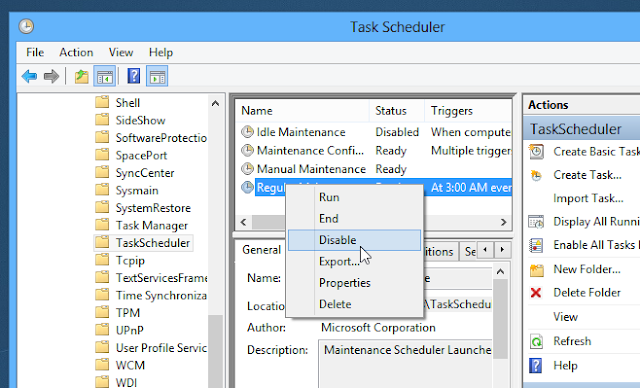
From  the left pane, navigate to:
Task Scheduler Library > Microsoft > Windows > TaskScheduler
Right click ‘Regular Maintenance’ from the center pane and select Disable from its context menu.
disable windows 8 automatic maintenance
That’s it! You have successfully disabled Regular Maintenance.


Thursday, 1 March 2012

closure look of windows 8

I don’t know about you guys but when I saw Metro UI for the first time on a desktop PC, the first word that came to my mind started with ‘W’ and ended with ‘TF’. Sure, Metro is a beautiful user interface but when put on a 22-inch monitor it looks terribly out of place and doesn’t feel right when operated with a mouse. It looks even worse when placed alongside the old Windows 7/Vista UI, which will also be part of Windows 8. I wished Microsoft had come up with a way to make the existing Windows 7/Vista UI look more like Metro instead of having them simultaneously in one OS.

Unfortunately, my wish was left unfulfilled by Windows 8. But there is a designer out there who took almost exactly what I had in mind and made a mockup out of it. This, according to me and that designer, is how Windows 8 should have looked like.
The talented designer goes by the name Sputnik8 on The Verge forums and has gone through great effort to redesign certain key elements of the Windows UI, such as the desktop, the Explorer window, the browser and the media player. He even redesigned the Windows logo, which looks a hell of a lot better than what Microsoft came up with. This concept UI is simple, beautiful and in-line with Microsoft’s Metro design language, without going too far from the original Windows look. And it looks like it could even work well on a touchscreen. In other words, it’s perfect.
Too bad that all we can do right now is look at these pictures and drool. Hopefully Microsoft sees these pictures and hires this guy to design their next version of Windows.


windows 8 gadgets


After a successful developer preview debut last fall, Microsoft has unveiled the consumer preview of its newest operating system today at this the Barcelona Mobile Conference.
Expectations are high after Microsoft surprised the developer crowd that had come to expect nothing special from Microsoft since the company failed to impress with Vista, or really any Windows product since 95. But the techies liked 8, with its redefined start menu and ability to run on both tablets and computers. Now the OS is ready for the masses on Microsoft’s site. Here’s what to expect.
An operating system for every gadget. Windows 8 will work on tablets, phones and regular old computers. ”We all face some yearning. We choose between productivity and consumption. A tablet or a laptop? A touch interface or a tablet and a mouse?” Windows President Steven Sinofsky said at the conference. Windows 8 will provide what Sinofsky calls a “no compromise experience.” Not only does that mean it works on all sorts of different platforms, but Microsoft 8 connects these devices, using a Microsoft account that will transfer settings from one device to the next.
The start menu will look funny. Microsoft has decided to change its defining feature, creating “tiles” (see above) instead of the traditional start menu. The new menu shows apps as tiles laid out in a grid, more like the Metro interface first introduced on Windows Phone. And there is no start button. No more ctrl-alt-delete, I can just hit enter, which is nice.
All sorts of navigation options. Part of this cross-platform strategy gives users all sorts of ways to access the system. “The new Windows 8 Start screen provides an intuitive and easy-to-use interface,” explains the consumer manual for businesses Microsoft recently posted. “With fully immersive Windows 8 apps and support for multi-touch and traditional keyboard and mouse.”
And indeed, during the presentation senior vice president Julie Larson Green swiped from screen to screen on a tablet. “She’s going through the app switching by swiping from the left side,” explains The Verge, in live blog of the event. “It’s pretty slick multitasking manager.” Corporate vice president Antoine Leblond navigated the laptop and said, “I can use the wheel, the page up page down, anything you’d expect.” As expected, clicks open apps. And, navigating to and from the home screen involves Microsoft’s version of hot corners. ”If I just want to go back to the start screen, I move to the bottom left corner. If you want to open an app, you move down there — it’s where the start button used to be,” he continues.
An app store. Microsoft now has one. It’s called the Windows Store and it has hundreds of apps from both third party developers and Microsoft, explains the just issued Press Release. Bonus: the apps are free, during the consumer preview, at least.
On the developer side, back when Microsoft announced its developer preview of Windows 8, we suggested developers would like Microsoft’s open system. Microsoft confirms this. “One of the fun things about working on the Consumer Preview has been talking to developers,” said Leblond. “They’re really happy about the transparency and clarity with adding apps to the store. We have the best app economics out there. We have unprecedented reach for their applications.”
Related Posts Plugin for WordPress, Blogger...